> For the complete documentation index, see [llms.txt](https://docs.rayon.design/llms.txt). Markdown versions of documentation pages are available by appending `.md` to page URLs; this page is available as [Markdown](https://docs.rayon.design/documentation/import-export/pdf-and-image-import.md).
# PDF & image import
All about importing files into Rayon.
Rayon supports **high-fidelity import of PDFs, SVGs and images**, with a scaling step, or without for quick import. We detail here how each import flow works.
### PDF importing options
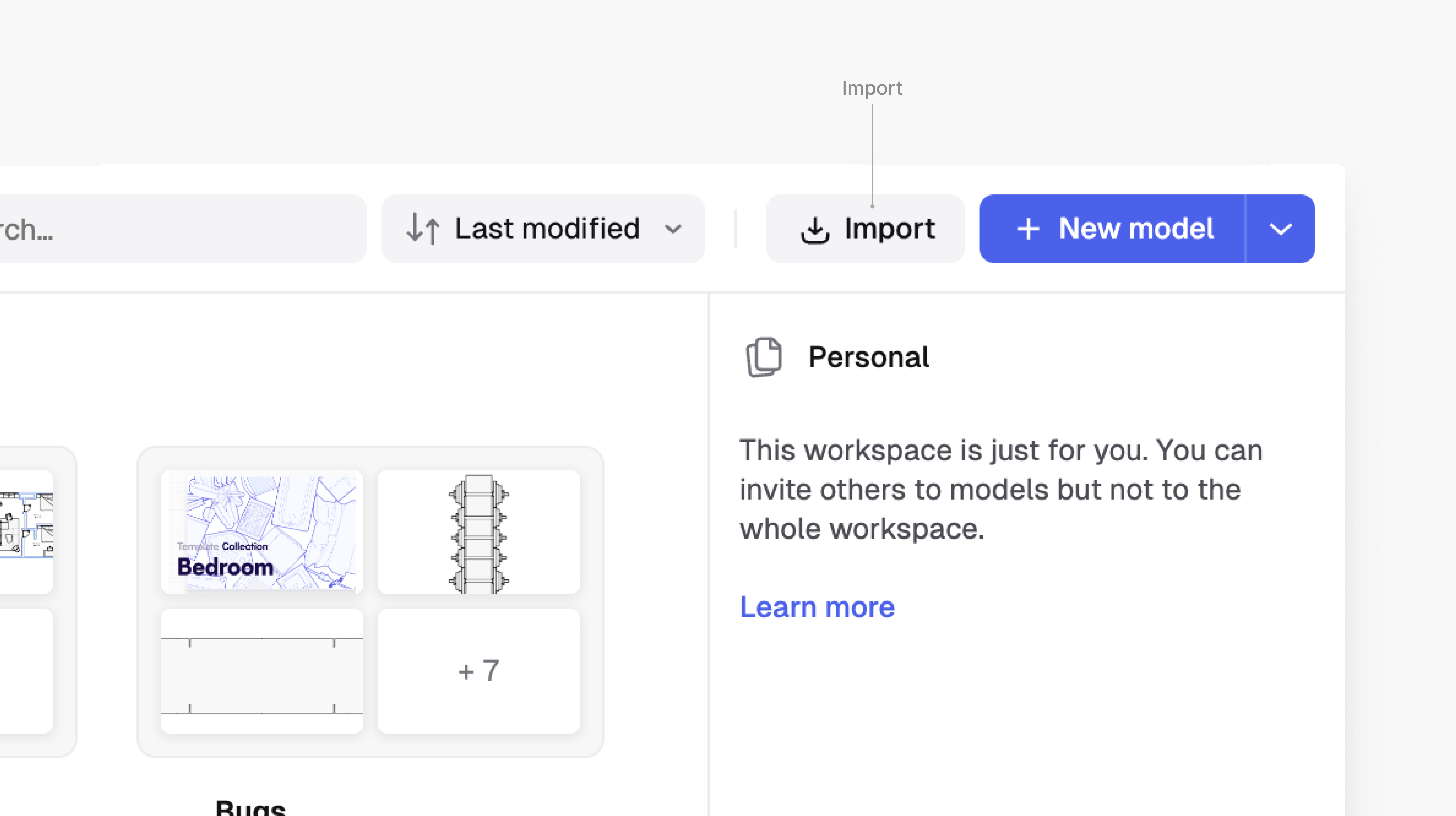
To **import** **a PDF** file into **Rayon**, start by clicking on **`Import`** in the top right of the project manager and **choose a file**.
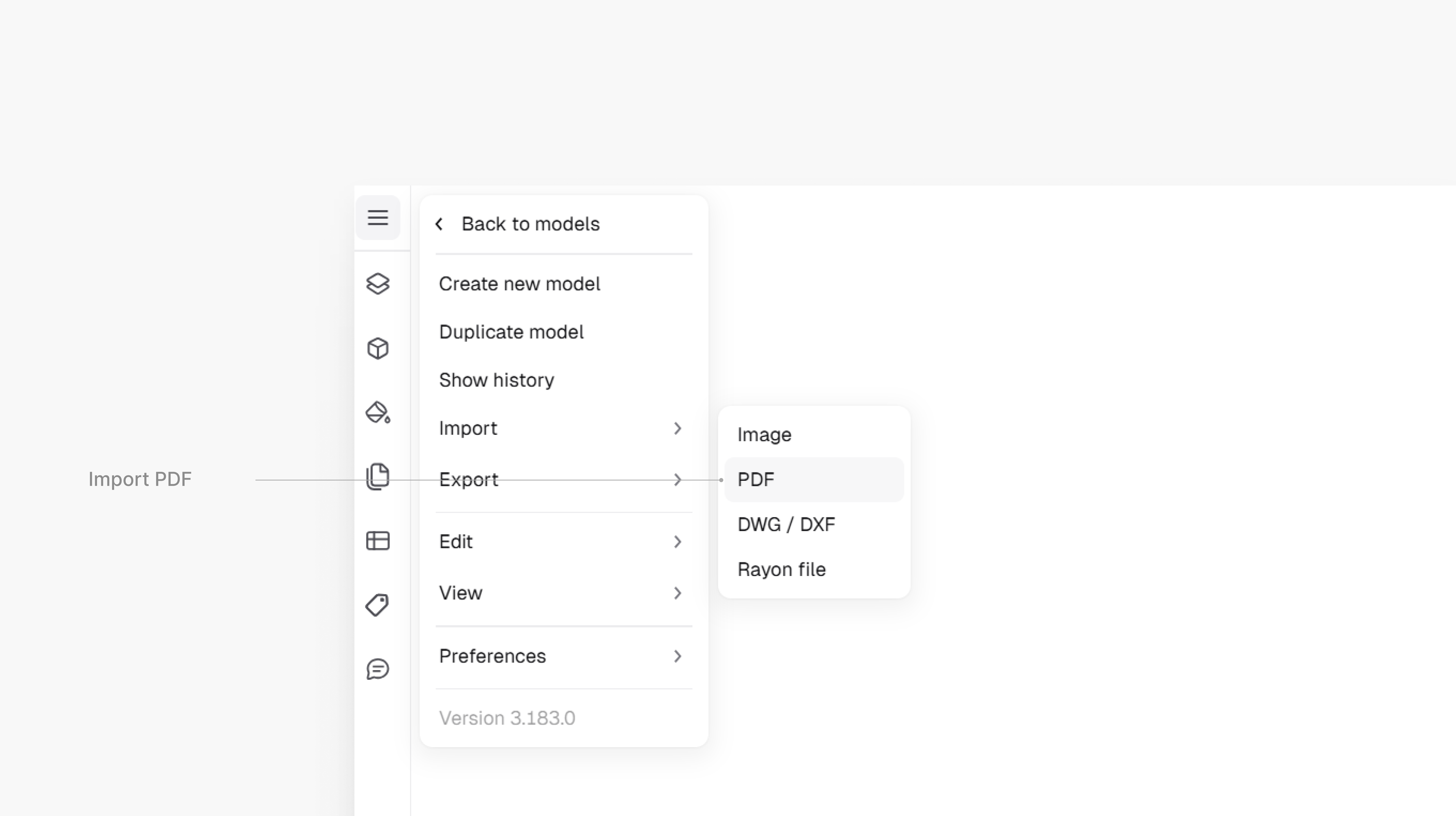
Alternatively, you can **`Import`** from the menu within a model.
**In the step that follows, select the pages** you would like to import, and define the formatting for import...\
\
**1.** **Name for model:** Define the name of your model if importing from the project manager.\
**2.** **Toggle `Selection` / `All` pages:** Select specific pages or all of them.\
**3.** **Toggle `Public` / `Private`:** Whether your model should be accessible only to you, or to the wider Rayon community. More information on public models here.\
**4.** **Toggle `Vector` / `Images`:** When vector is chosen, Rayon will import any editable geometry. If image is chosen, your file will be converted to an image, and you won't be able to edit its geometry.\
**5. Toggle `Single` / `Multiple`:** Single mode will place all selected pages on one canvas, at the same scale. Multiple mode will create a new canvas for each selected page, with individual scale.\
**6. Toggle `New` / `Legacy`:** New mode is much quicker, but imports text as curves.
Once settings are chosen, click **`Import`** to move on to the scaling step.
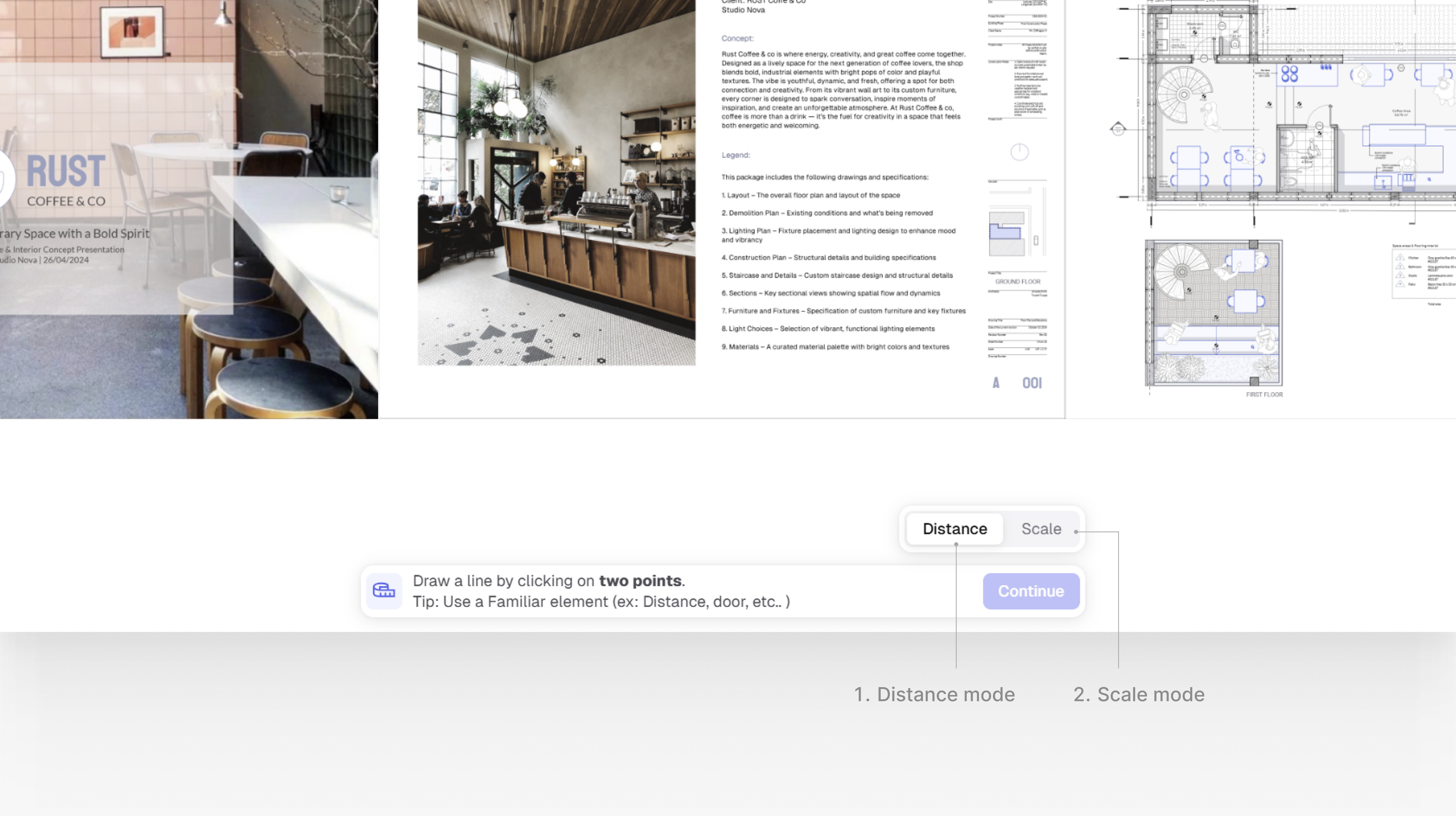
**At this point, a few options are available to you to set the scale** of your imported drawing, by either choosing **`distance` mode** or **`scale` mode**.
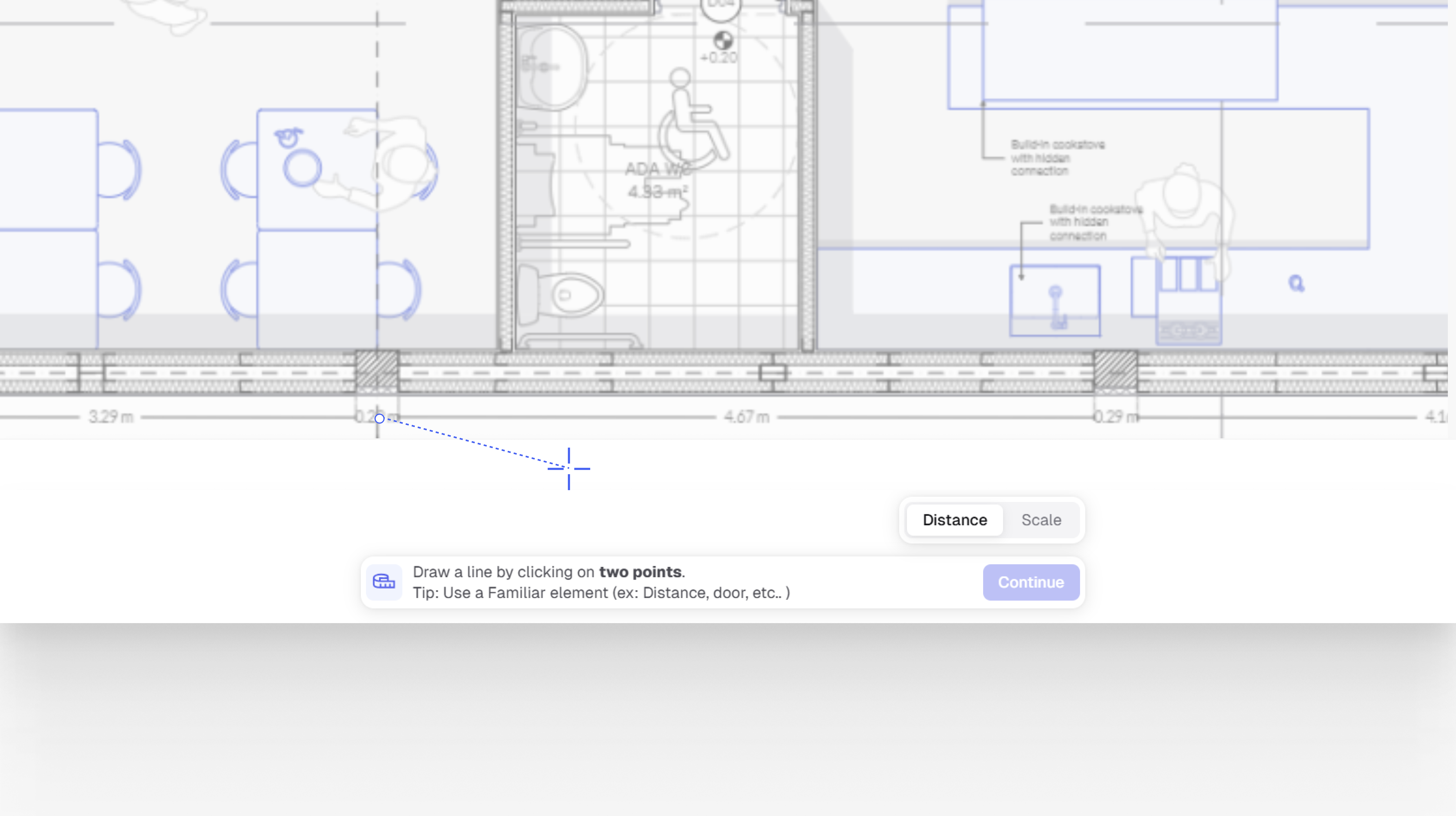
In **`distance` mode,** start by drawing a line between two **known points.** You can move around the model to find and use a familiar element (e.g. an existing dimension on your PDF, or a common element such as the width of a door).
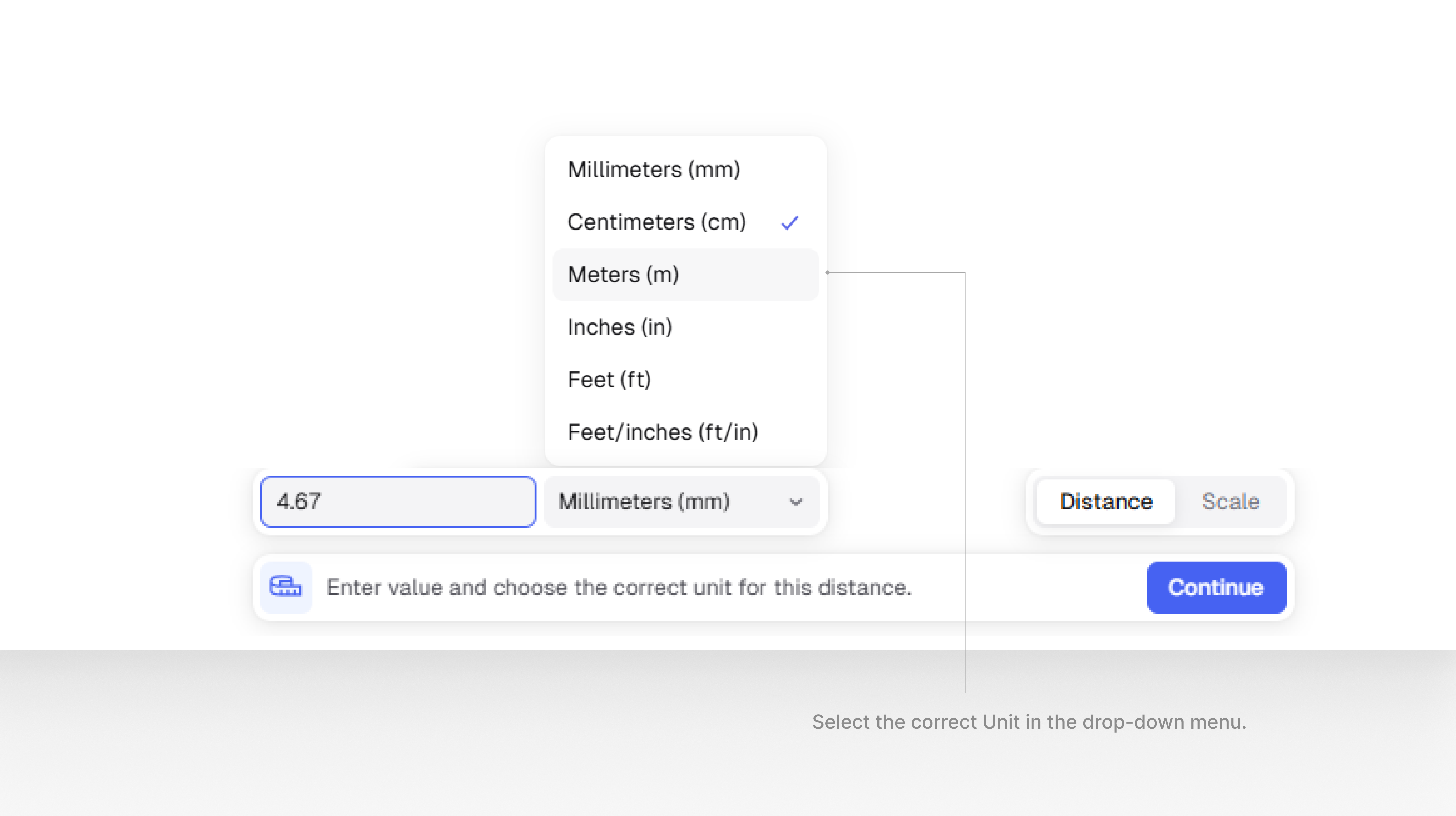
**At this point,** enter the distance of the **blue line that you drew in the previous step,** and then change the unit to the correct one. Once you have chosen both the unit and the value, click on **`continue`**. This will close the current tab and open the PDF in your model.
In **`scale` mode,** you'll be asked to define the scale of your drawing. If you know it, look for it on your PDF.\
If in doubt, use the **`distance`** mode.
### Image importing options
Importing images works like PDF importing, without the page selection step. In essence, to import an image into Rayon, you can...
* Click on **`Import`** in the top right of the project manager and **choose a file**. Note that for images, Rayon supports only \*.jpg, \*.png, \*.webp, \*.heic, \*.bmp and \*.gif formats.
* **Set the scale** of your imported drawing, by either choosing **distance mode** or **scale mode**. Then click on **`Continue`**.
**That's it!** Your file is imported into **a new model.**
**Note that another, simpler way to import images without the scaling step is** to drag and drop multiple images directly from your file explorer to your Rayon model. Also, as with DWGs, images can be imported from within an existing model, by going to the main menu > Import.
Note that Rayon supports importing images up to 10 MB, and that images larger than 2048x2048 pixels will be compressed.
### Importing an SVG file
SVG files can be imported directly into Rayon. From within a model, open the main menu, head to **`Import`**, and choose **`SVG`**.

### Importing a RY file
To **import** **a RY file** into **Rayon**:
* Click on **`Import`** in the top right of the project manager and **choose a file**.
* **That's it!** Your file is imported into **a new model.**
### Copying from one model to another
To copy entities from one **Rayon** model to another:
* Select the entities you wish to copy.
* Right-click and choose **`Copy`**, or press **`CMD/CTRL` + `C`**.
* Paste the content in the other Rayon model.
***
### We are always available
Book a demo with our team, [right here](https://b1kzip68v9f.typeform.com/to/Hgr0eQ4k#source=docs).\
To get some support, reach out to us through our **in-app support chat**.\
More about [our support policy right here](/other-resources/others/support-policy.md).
.png?alt=media&token=af515e88-a8e4-4498-8151-1b1a5f274c98)